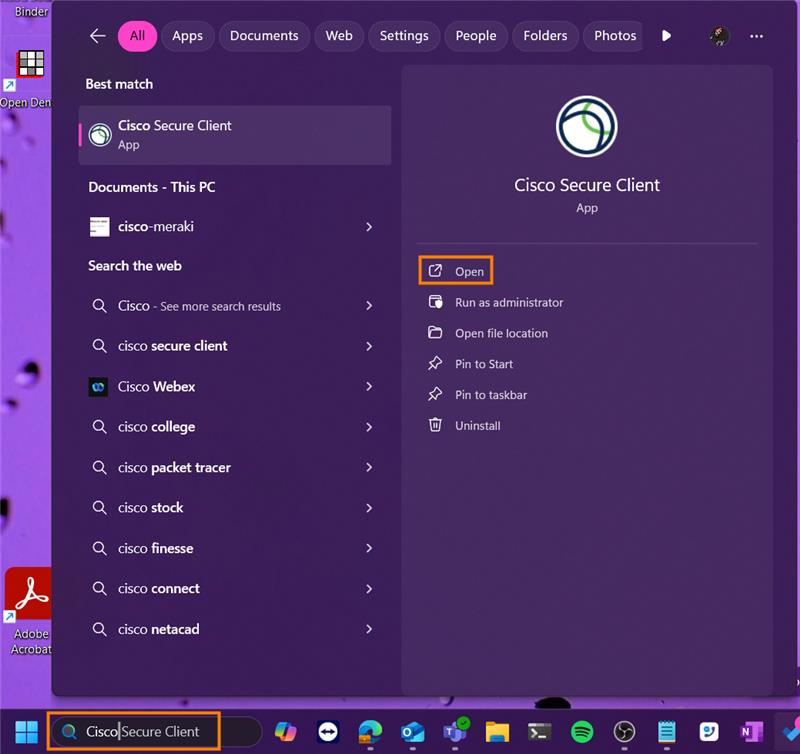
Step 1. Using the search option on the task bar, search for Cisco Secure Client.
Step 2. The Cisco Secure Client box will open. Copy and paste the below text into the empty field.
https://chn-datacenter-private-vtpgzrmzjz.dynamic-m.com:8443
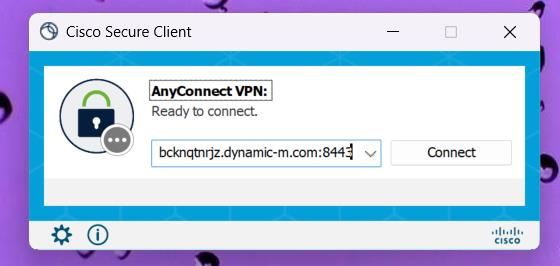 You will only need to follow this step the first time you use Cisco Secure Client
Click on connect after you've pasted the text.
Step 3. A window will pop up prompting you to sign into Microsoft.
Enter the same credentials that you use to sign into Outlook, Teams etc.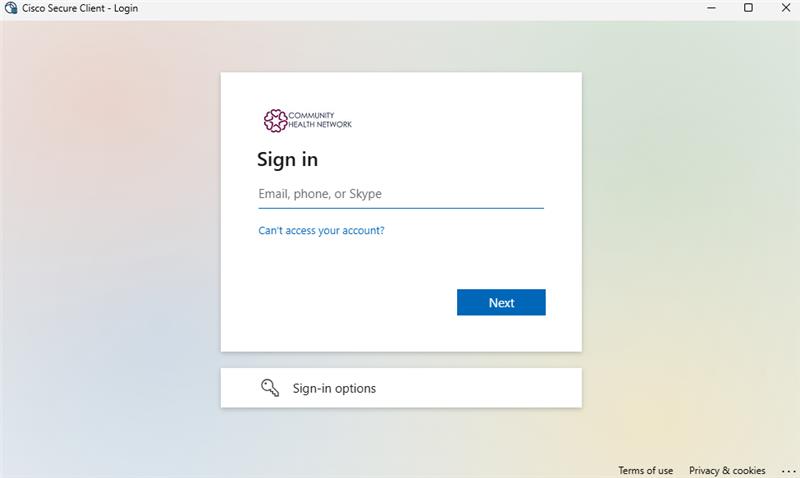
You may be asked to enter a code that was sent to your phone number.
You should now be connected to the Scarsdale VPN.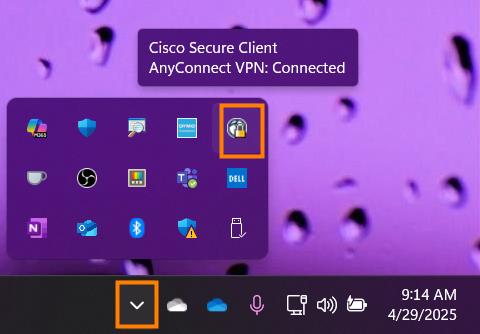
To disconnect, right click the Cisco Secure Client icon in the icon tray (shown in the picture above) and select disconnect.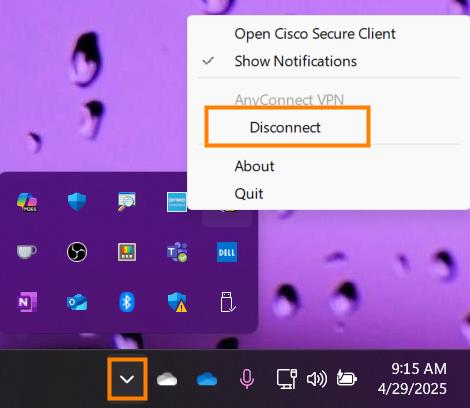
Was this article helpful?
That’s Great!
Thank you for your feedback
Sorry! We couldn't be helpful
Thank you for your feedback
Feedback sent
We appreciate your effort and will try to fix the article