- Open Outlook (desktop or web application)
- Click the Settings (⚙️ gear icon) in the top right
- Under Accounts click Signatures
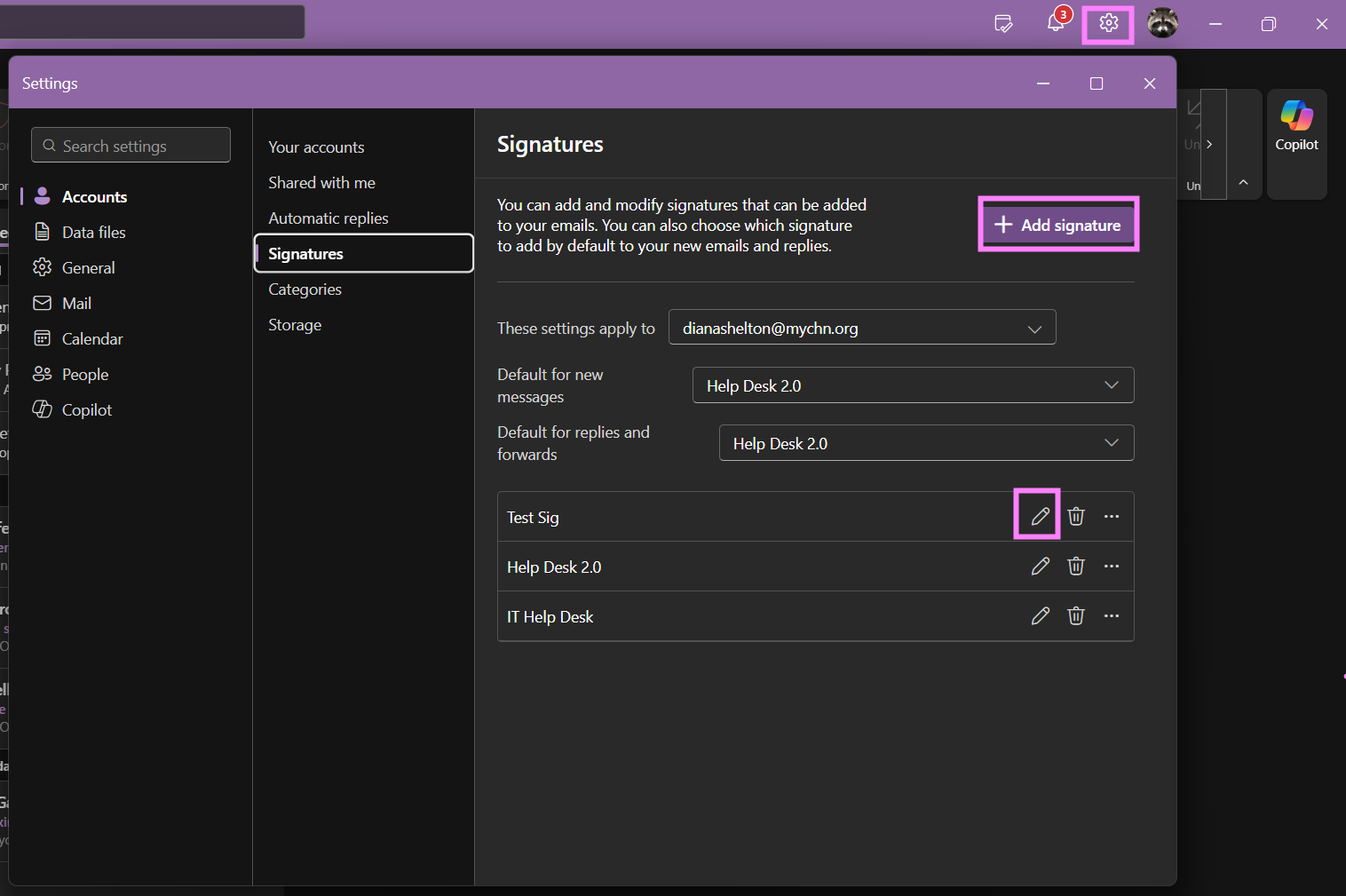
- To add a new signature, click Add signaturebutton
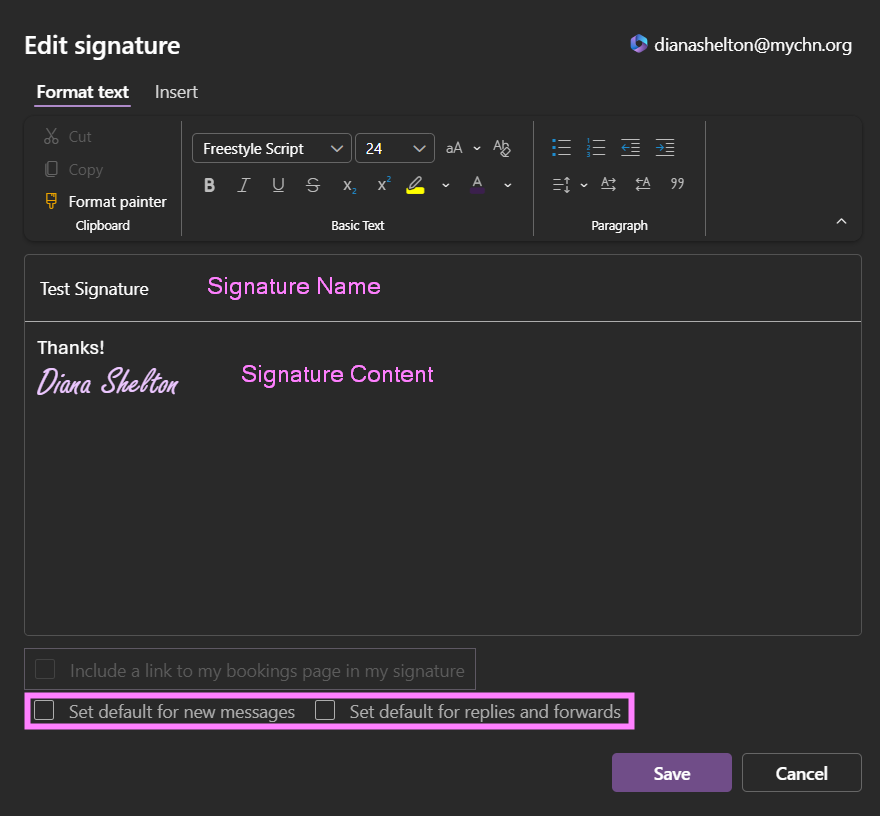
- Signature Name - Name your signature
- Signature Content - Add any text or images to compose your signature
- You can select if you want this signature to be used as your default for new messages and/or replies and forwards.
- Click Save
- To edit an existing signature, click the pencil icon next to the signature you want to edit.
- here you can make any changes you need to update the signature.
- Click Save when done
Was this article helpful?
That’s Great!
Thank you for your feedback
Sorry! We couldn't be helpful
Thank you for your feedback
Feedback sent
We appreciate your effort and will try to fix the article